Thursday, September 30, 2010

Tutorial: Simple game with HTML5 Canvas - part 5

Tutorial: Simple game with HTML5 Canvas
Part 1 - Introduction & Background
Part 2 - Character & Animation
Part 3 - Physics & Controls
Part 4 - Platforms & Collisions
Part 5 - Scrolling & Game States

First of all I want to thanks for the responses to my tutorial, all the comments, emails and tweets I receive. It's an awesome feeling - to be aware that someone is reading all that stuff and even likes it. Oh, and don't forget to follow me on Twitter - http://twitter.com/michalbe.

Part 5a. SCROLLING & POINTS
During the last lesson we teach our angel how to use platforms. Now let him jump higher than screen height. To obtain that we need to use trick as old as platform games - stop the character in one place and move everything else in opposite direction. In our example angel will stop in the middle of the screen and rest of the speed will move background and platforms down. Let's modify checkJump() method of the player:
(...)
that.checkJump = function() {     
    if (that.Y > height*0.4) {
//if player is under about half of the screen - let him move
        that.setPosition(that.X, that.Y - that.jumpSpeed);        
    } else {
//in other dont move player up, move platforms and circles down instead
        MoveCircles(that.jumpSpeed * 0.5); 
//clouds are in the background, further than platforms and player, so we will move it with half speed
        
        platforms.forEach(function(platform, ind){
            platform.y += that.jumpSpeed;

            if (platform.y > height) {
//if platform moves outside the screen, we will generate another one on the top
                var type = ~~(Math.random() * 5);
                if (type == 0) 
                    type = 1;
                else 
                    type = 0;
                platforms[ind] = new Platform(Math.random() * (width - platformWidth), platform.y - height, type);
            }
        });
    }
    
    
    that.jumpSpeed--;
    if (that.jumpSpeed == 0) {
        that.isJumping = false;
        that.isFalling = true;
        that.fallSpeed = 1;
    }

}
When the platform moves outside the screen we will generates another one on the top, but not directly on 0-y, because we need to keep the distance between the platforms. So first we calculate how far it goes under the bottom, subtract hat value from total height and generate platform on that Y with random X. Yes, I know that it will show up suddenly in the middle of the screen, but while whole attention of the player is focused on the character, no one will notice that.
Ok, it is possible now to jump as high as we want, but there are still couple of things to fix, eg difficulty level.
To make everything harder let's give movement ability to some platforms. The higher your character will be, the faster platforms will move. To achieve this, first we will implement very simple points system, and after that modify a little Platform object and GameLoop() part responsible for drawing platforms.
var width = 320, 
    height = 500,
    gLoop,
    points = 0,
//adding points to global variables
(...)

var Platform = function(x, y, type){
(...)
    that.isMoving = ~~(Math.random() * 2);
//first, let's check if platform will be able to move (1) or not (0)
    that.direction= ~~(Math.random() * 2) ? -1 : 1;
//and then in which direction
(...)
}

var GameLoop = function(){
    clear();
    DrawCircles();

    if (player.isJumping) player.checkJump();
    if (player.isFalling) player.checkFall();
 
    player.draw();
//moving player.draw() above drawing platforms will draw player before, so platforms will be drawn over him. It looks better that way because sometimes angel 'sinks' in the platform with his legs.

    platforms.forEach(function(platform, index){
        if (platform.isMoving) {
//if platform is able to move
            if (platform.x < 0) {
//and if is on the end of the screen
                platform.direction = 1;
            } else if (platform.x > width - platformWidth) {
                platform.direction = -1;
//switch direction and start moving in the opposite direction
            }
            platform.x += platform.direction * (index / 2) * ~~(points / 100);
//with speed dependent on the index in platforms[] array (to avoid moving all the displayed platforms with the same speed, it looks ugly) and number of points
        }
        platform.draw();
    });
Increasing points should be implement in player.checkJump(), after checking if player is in the middle of the screen:
that.checkJump = function() {
    if (that.Y > height*0.4) {
        that.setPosition(that.X, that.Y - that.jumpSpeed);        
    } else {
        if (that.jumpSpeed > 10) points++; //here!
        MoveCircles(that.jumpSpeed * 0.5);
(...)
When everything is already drawn we could render GUI on the top of everything. So add in GameLoop(), just before calling another frame:
ctx.fillStyle = "Black";
//change active color to black
ctx.fillText("POINTS:" + points, 10, height-10);
//and add text in the left-bottom corner of the canvas
Part 5b. GAME STATES
Everything works cool, but it is not possible to lose. In case we use setTimeout() instead of setInterval(), we need to create boolean variable with game state. It will be 'true' during the game and 'false' when game ends. It is nice to prepare also some GameOver screen. Let's start with adding new variables and modifying GameLoop().
var width = 320, 
    height = 500,
    gLoop,
    points = 0,
    state = true,
(...)

var GameLoop = function(){
(...)
//go to another frame only when state is true
    if (state)
        gLoop = setTimeout(GameLoop, 1000 / 50);
(...)
}

//GameOver screen
var GameOver = function(){
    state = false;
//set state to false
    clearTimeout(gLoop);
//stop calling another frame
    setTimeout(function(){
//wait for already called frames to be drawn and then clear everything and render text
        clear(); 
        ctx.fillStyle = "Black";
        ctx.font = "10pt Arial";
        ctx.fillText("GAME OVER", width / 2 - 60, height / 2 - 50);
        ctx.fillText("YOUR RESULT:" + points, width / 2 - 60, height / 2 - 30);
    }, 100);
};
Now we must determine when to stop the game and display GameOver Screen. We need to modify player's checkfall() method
that.checkFall = function(){
    if (that.Y < height - that.height) {
        that.setPosition(that.X, that.Y + that.fallSpeed);
        that.fallSpeed++;
    } else {
        if (points == 0) 
//allow player to step on the floor at he beginning of the game
            that.fallStop();
        else 
            GameOver();
    }
}
And that's all! Thank you one more time for your time. I'm waiting for questions and ideas of improvement so feel free to ask/write. As usual: - sources on github Simple game with HTML5 Canvas - and working example on jsbin: Simple game with HTML5 Canvas Tutorial: Simple game with HTML5 Canvas Part 1 - Introduction & Background Part 2 - Character & Animation Part 3 - Physics & Controls Part 4 - Platforms & Collisions Part 5 - Scrolling & Game States

UPDATE
I would like to thanks anyone who found my Simple HTML5 canvas game tutorial useful. I receive a lot of emails, tweets, and couple of comments in here with a lot of positive feedback. I know also that some of you tried to create own games based on my tips. Below I put links to games I know about, I hope authors don't mind. If you also have leaned something from my tutorial, and created anything interesting with it, feel free to write me about that, I will put your link here also.


Sunday, September 19, 2010

Tutorial: Simple game with HTML5 Canvas - part 4

Tutorial: Simple game with HTML5 Canvas
Part 1 - Introduction & Background
Part 2 - Character & Animation
Part 3 - Physics & Controls
Part 4 - Platforms & Collisions
Part 5 - Scrolling & Game States

Part 4a. DRAWING THE PLATFORMS
There are two types of platforms our character is able to jump on - ordinary one (orange) and green one - trampoline, gives extra speer and hyper-ultra-high jump. There are always seven platforms on the screen at the time (I tried different number, from 4 to 10 and only 7 works fine with screen size I declare at the beginning). Let's create Platform "class" (function platforms will inherit from).
var Platform = function(x, y, type){
//function takes position and platform type
var that=this;

that.firstColor = '#FF8C00';
that.secondColor = '#EEEE00';
that.onCollide = function(){
player.fallStop();
};
//if platform type is different than 1, set right color & collision function (in this case just call player's fallStop() method we defined last time
if (type === 1) {
//but if type is equal '1', set different color and set jumpSpeed to 50. After such an operation checkJump() method will takes substituted '50' instead of default '17' we set in jump().
that.firstColor = '#AADD00';
that.secondColor = '#698B22';
that.onCollide = function(){
player.fallStop();
player.jumpSpeed = 50;
};
}

that.x = ~~x;
that.y = y;
that.type = type;

return that;
};
Now it's necessary to create function which will generate all that platform stuff and put it into platforms[] array we will define shortly. After that it will be nice to draw the platforms on the screen.
var nrOfPlatforms = 7, 
platforms = [],
platformWidth = 70,
platformHeight = 20;
//global (so far) variables are not the best place for storing platform size information, but in case it will be needed to calculate collisions I put it here, not as a Platform attributes
var generatePlatforms = function(){
var position = 0, type;
//'position' is Y of the platform, to place it in quite similar intervals it starts from 0
for (var i = 0; i < nrOfPlatforms; i++) {
type = ~~(Math.random()*5);
if (type == 0) type = 1;
else type = 0;
//it's 5 times more possible to get 'ordinary' platform than 'super' one
platforms[i] = new Platform(Math.random()*(width-platformWidth),position,type);
//random X position
if (position < height - platformHeight) 
position += ~~(height / nrOfPlatforms);
}
//and Y position interval
}();
//we call that function only once, before game start
Extending Platform object with draw() method:
var Platform = function(x, y, type){
(...)
that.draw = function(){
ctx.fillStyle = 'rgba(255, 255, 255, 1)';
//it's important to change transparency to '1' before drawing the platforms, in other case they acquire last set transparency in Google Chrome Browser, and because circles in background are semi-transparent it's good idea to fix it. I forgot about that in my 10kApart entry, I think because Firefox and Safari change it by default
var gradient = ctx.createRadialGradient(that.x + (platformWidth/2), that.y + (platformHeight/2), 5, that.x + (platformWidth/2), that.y + (platformHeight/2), 45);
gradient.addColorStop(0, that.firstColor);
gradient.addColorStop(1, that.secondColor);
ctx.fillStyle = gradient;
ctx.fillRect(that.x, that.y, platformWidth, platformHeight);
//drawing gradient inside rectangular platform
};

return that;
};
Platform must be drawn on each frame, so updating GameLoop() is a must.
var GameLoop = function(){
(...)
platforms.forEach(function(platform){
platform.draw();
});
(...)
};
Part 4b. COLLISIONS Nice, but there is no interaction between angel and the platforms. But one little function will handle everything. Let me introduce checkCollision():
var checkCollision = function(){
platforms.forEach(function(e, ind){
//check every plaftorm
if (
(player.isFalling) && 
//only when player is falling
(player.X < e.x + platformWidth) && 
(player.X + player.width > e.x) && 
(player.Y + player.height > e.y) && 
(player.Y + player.height < e.y + platformHeight)
//and is directly over the platform
) {
e.onCollide();
}
})
}
Another update of main loop (it is good moment to comment line with MoveCircles() function - if platforms are standing still why background is falling down? It will makes more sense when we will implement platform scrolling. Whole GameLoop() function should looks like that now:
var GameLoop = function(){
clear();
//MoveCircles(5);
DrawCircles();

if (player.isJumping) player.checkJump();
if (player.isFalling) player.checkFall();

platforms.forEach(function(platform){
platform.draw();
});

checkCollision();

player.draw();
gLoop = setTimeout(GameLoop, 1000 / 50);
}
Final result: [platforms & collisions demo] Source: [MichalBe Github] I think next part will be the last one, but who knows:).

Tutorial: Simple game with HTML5 Canvas
Part 1 - Introduction & Background
Part 2 - Character & Animation
Part 3 - Physics & Controls
Part 4 - Platforms & Collisions
Part 5 - Scrolling & Game States

Friday, September 17, 2010

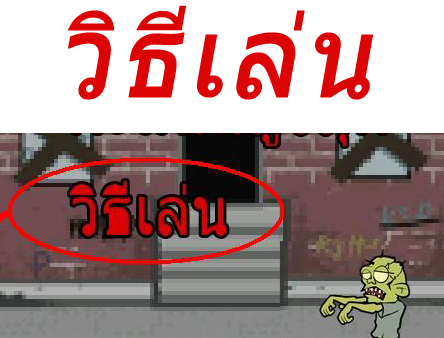
Samsung approval and Thai fonts

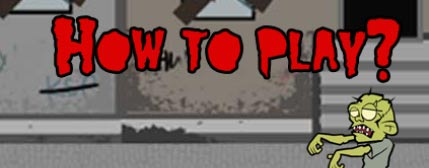
Is it really impossible for Thai people to read their alphabet when some single gaps will be filled in? Latin alphabet I use every day has evolved through the ages in countless different fonts and shapes, from handwriting, Gothic fonts, print characters, to graffiti. And I'm able to read all of them, just like most people in the world. So why people of Thailand couldn't understand single word when I use custom font with filled gaps? Or maybe that is just another odd invention of Samsung testers? My Zombie Eliminator was removed from Thai Samsung Apps Catalog because, as they said, "Font is not good in Thailand". Why you couldn't understand this ('original' word above, and red mark on the screenshot made by Samsung Content Inspector):
...when Latin alphabet is totally understandable for me and rest of the world, even with filled gaps (like 'o' or 'p'):
Thursday, September 16, 2010

Tutorial: Simple game with HTML5 Canvas - part 3

Tutorial: Simple game with HTML5 Canvas
Part 1 - Introduction & Background
Part 2 - Character & Animation
Part 3 - Physics & Controls
Part 4 - Platforms & Collisions
Part 5 - Scrolling & Game States

Part 3a. PHYSICS
Because physics in StH is very simple, there is no need to include any Physics Engine such as Box2d. Jumping is so uncomplicated that it is possible to implement it just in few code lines.
Let's divide it into two unrelated parts - jumping and falling. When object start to jump, it has some initial velocity, deceased by gravity. It phase ends when that velocity is completely reduced and gravity starts to attract object down with increasing force. That is the second part of the jump - falling. To teach angel how to behave in such situations, let's expand player object with few more attributes:
var player = new (function(){
var that = this;
that.image = new Image();
(...)

//new attributes
that.isJumping = false;
that.isFalling = false;
//state of the object described by bool variables - is it rising or falling?

that.jumpSpeed = 0;
that.fallSpeed = 0;
//each - jumping & falling should have its speed values

(...) //rest of the code
})();
Now lets introduce methods responsible for jumping. Further expanding of player object:
that.jump = function() {
//initiation of the jump
if (!that.isJumping && !that.isFalling) {
//if objects isn't currently jumping or falling (preventing of 'double jumps', or bouncing from the air
that.fallSpeed = 0;
that.isJumping = true;
that.jumpSpeed = 17;
// initial velocity
}
}

that.checkJump = function() {
//when 'jumping' action was initiated by jump() method, initiative is taken by this one.
that.setPosition(that.X, that.Y - that.jumpSpeed);
//move object by number of pixels equal to current value of 'jumpSpeed'
that.jumpSpeed--;
//and decease it (simulation of gravity)
if (that.jumpSpeed == 0) {
//start to falling, similar to jump() function
that.isJumping = false;
that.isFalling = true;
that.fallSpeed = 1;
}

}

that.checkFall = function(){
//same situation as in checkJump()
if (that.Y < height - that.height) {
//check if the object meets the bottom of the screen, if not just change the position and increase fallSpeed (simulation of gravity acceleration)...
that.setPosition(that.X, that.Y + that.fallSpeed);
that.fallSpeed++;
} else {
//..if yes - bounce
that.fallStop();
}
}

that.fallStop = function(){
//stop falling, start jumping again
that.isFalling = false;
that.fallSpeed = 0;
that.jump();    
}
It's necessarily to update main loop function to redraw player's position while jumping and falling. Update GameLoop() with this code, just before drawing the character:
if (player.isJumping) player.checkJump();
if (player.isFalling) player.checkFall();
I think above code is clear enough to understand. Last action we have to take with all that physics stuff is simply initiation of the first jump, right after placing player on the stage.
player.setPosition(~~((width-player.width)/2), ~~((height - player.height)/2));
player.jump(); //here
Ok, it's jumping beautifully, piece of awesome pseudo-physics code. Now let's make some controls. Part 3b. CONTROLLS Main character of StH can move sideways only. It jumps automatically, up/down movement depends of platforms. User can only command angel to move left or right. One more time it could be achieved by with extension player object with additional methods.
var player = new(function(){
(...)
that.moveLeft = function(){
if (that.X > 0) {
//check whether the object is inside the screen
that.setPosition(that.X - 5, that.Y);
}
}

that.moveRight = function(){
if (that.X + that.width < width) {
//check whether the object is inside the screen
that.setPosition(that.X + 5, that.Y);
}
}
(...)
})();
Now bind that functions to the mouse pointer position (angel will follow it).
document.onmousemove = function(e){
if (player.X + c.offsetLeft > e.pageX) {
//if mouse is on the left side of the player.
player.moveLeft();
} else if (player.X + c.offsetLeft < e.pageX) {
//or on right?
player.moveRight();
}
}
It's everything for today. In next episode I will introduce platform drawing and collisions. As usual: [demo with jumping & controls] [source in GitHub repo]

Tutorial: Simple game with HTML5 Canvas
Part 1 - Introduction & Background
Part 2 - Character & Animation
Part 3 - Physics & Controls
Part 4 - Platforms & Collisions
Part 5 - Scrolling & Game States