Thursday, September 16, 2010

Tutorial: Simple game with HTML5 Canvas - part 3

Tutorial: Simple game with HTML5 Canvas
Part 1 - Introduction & Background
Part 2 - Character & Animation
Part 3 - Physics & Controls
Part 4 - Platforms & Collisions
Part 5 - Scrolling & Game States

Part 3a. PHYSICS
Because physics in StH is very simple, there is no need to include any Physics Engine such as Box2d. Jumping is so uncomplicated that it is possible to implement it just in few code lines.
Let's divide it into two unrelated parts - jumping and falling. When object start to jump, it has some initial velocity, deceased by gravity. It phase ends when that velocity is completely reduced and gravity starts to attract object down with increasing force. That is the second part of the jump - falling. To teach angel how to behave in such situations, let's expand player object with few more attributes:
var player = new (function(){
var that = this;
that.image = new Image();
(...)

//new attributes
that.isJumping = false;
that.isFalling = false;
//state of the object described by bool variables - is it rising or falling?

that.jumpSpeed = 0;
that.fallSpeed = 0;
//each - jumping & falling should have its speed values

(...) //rest of the code
})();
Now lets introduce methods responsible for jumping. Further expanding of player object:
that.jump = function() {
//initiation of the jump
if (!that.isJumping && !that.isFalling) {
//if objects isn't currently jumping or falling (preventing of 'double jumps', or bouncing from the air
that.fallSpeed = 0;
that.isJumping = true;
that.jumpSpeed = 17;
// initial velocity
}
}

that.checkJump = function() {
//when 'jumping' action was initiated by jump() method, initiative is taken by this one.
that.setPosition(that.X, that.Y - that.jumpSpeed);
//move object by number of pixels equal to current value of 'jumpSpeed'
that.jumpSpeed--;
//and decease it (simulation of gravity)
if (that.jumpSpeed == 0) {
//start to falling, similar to jump() function
that.isJumping = false;
that.isFalling = true;
that.fallSpeed = 1;
}

}

that.checkFall = function(){
//same situation as in checkJump()
if (that.Y < height - that.height) {
//check if the object meets the bottom of the screen, if not just change the position and increase fallSpeed (simulation of gravity acceleration)...
that.setPosition(that.X, that.Y + that.fallSpeed);
that.fallSpeed++;
} else {
//..if yes - bounce
that.fallStop();
}
}

that.fallStop = function(){
//stop falling, start jumping again
that.isFalling = false;
that.fallSpeed = 0;
that.jump();    
}
It's necessarily to update main loop function to redraw player's position while jumping and falling. Update GameLoop() with this code, just before drawing the character:
if (player.isJumping) player.checkJump();
if (player.isFalling) player.checkFall();
I think above code is clear enough to understand. Last action we have to take with all that physics stuff is simply initiation of the first jump, right after placing player on the stage.
player.setPosition(~~((width-player.width)/2), ~~((height - player.height)/2));
player.jump(); //here
Ok, it's jumping beautifully, piece of awesome pseudo-physics code. Now let's make some controls. Part 3b. CONTROLLS Main character of StH can move sideways only. It jumps automatically, up/down movement depends of platforms. User can only command angel to move left or right. One more time it could be achieved by with extension player object with additional methods.
var player = new(function(){
(...)
that.moveLeft = function(){
if (that.X > 0) {
//check whether the object is inside the screen
that.setPosition(that.X - 5, that.Y);
}
}

that.moveRight = function(){
if (that.X + that.width < width) {
//check whether the object is inside the screen
that.setPosition(that.X + 5, that.Y);
}
}
(...)
})();
Now bind that functions to the mouse pointer position (angel will follow it).
document.onmousemove = function(e){
if (player.X + c.offsetLeft > e.pageX) {
//if mouse is on the left side of the player.
player.moveLeft();
} else if (player.X + c.offsetLeft < e.pageX) {
//or on right?
player.moveRight();
}
}
It's everything for today. In next episode I will introduce platform drawing and collisions. As usual: [demo with jumping & controls] [source in GitHub repo]

Tutorial: Simple game with HTML5 Canvas
Part 1 - Introduction & Background
Part 2 - Character & Animation
Part 3 - Physics & Controls
Part 4 - Platforms & Collisions
Part 5 - Scrolling & Game States

Saturday, September 11, 2010

Tutorial: Simple game with HTML5 Canvas - part 2

Tutorial: Simple game with HTML5 Canvas
Part 1 - Introduction & Background
Part 2 - Character & Animation
Part 3 - Physics & Controls
Part 4 - Platforms & Collisions
Part 5 - Scrolling & Game States

Part 2. CHARACTER
It is time now to add main character to the awesome background created in the last part. In StH it was cute little angel with simple wing flapping animation in just two frames, saved in .png with transparent background. Exactly like this one:
Let's create object representing main character with all necessarily methods and attributes. I will call it 'player'. The way of creating objects I present here is not the best one, all the attributes are visible from outside the object, there is no privacy at all. But that was simplest and shortest solution I was able to implement to fit 10KB, and most importantly - it works. If you want to know how to define proper objects with private attributes, inheritance, etc. read about Javascript Closures. Also it's important to remember, when you want to shrink your code with tools like Closure Compiler, that names of object's arguments won't change. That why in original code I use 2 letters shortcuts for describing player object, like 'player.im' instead of 'player.image', etc. SO, the object:
var player = new (function(){
//create new object based on function and assign 
//what it returns to the 'player' variable

    var that = this;
//'that' will be the context now

//attributes
    that.image = new Image();
    that.image.src = "angel.png";
//create new Image and set it's source to the 
//'angel.png' image I upload above

    that.width = 65;
//width of the single frame
    that.height = 95;
//height of the single frame

    that.X = 0;
    that.Y = 0;
//X&Y position

//methods 
    that.setPosition = function(x, y){
    that.X = x;
    that.Y = y;
}

    that.draw = function(){
        try {
            ctx.drawImage(that.image, 0, 0, that.width, that.height, that.X, that.Y, that.width, that.height);
//cutting source image and pasting it into destination one, drawImage(Image Object, source X, source Y, source Width, source Height, destination X (X position), destination Y (Y position), Destination width, Destination height)
        } catch (e) {
//sometimes, if character's image is too big and will not load until the drawing of the first frame, Javascript will throws error and stop executing everything. To avoid this we have to catch an error and retry painting in another frame. It is invisible for the user with 50 frames per second.
        }
    }
})();
//we immediately execute the function above and 
//assign its result to the 'player' variable
//as a new object 

player.setPosition(~~((width-player.width)/2),  ~~((height - player.height)/2));
//our character is ready, let's move it 
//to the center of the screen,
//'~~' returns nearest lower integer from
//given float, equivalent of Math.floor()
Ok, so now the angel needs to be redrawn on each frame. GameLoop() will be updated with player.draw() function:
var GameLoop = function(){
    clear();
    MoveCircles(5);
    DrawCircles();
    player.draw();
    gLoop = setTimeout(GameLoop, 1000 / 50);
}
But what about animation? Angel sprite has 2 frames, but only one is redrawn on each frame. To make an animation, our player needs additional attributes and a little changes in draw() method.
var player = new (function(){
(...)
    that.frames = 1;
//number of frames indexed from zero
    that.actualFrame = 0;
//start from which frame
    that.interval = 0;
//we don't need to switch animation frame
//on each game loop, interval will helps
//with this.

    that.draw = function(){
        try {
            ctx.drawImage(that.image, 0, that.height * that.actualFrame, that.width, that.height, that.X, that.Y, that.width, that.height);
//3rd agument needs to be multiplied by number of frames, so on each loop different frame will be cut from the source image
        } catch (e) {};

        if (that.interval == 4 ) {
            if (that.actualFrame == that.frames) {
                that.actualFrame = 0;
            } else {
                that.actualFrame++;
            }
            that.interval = 0;
        }
    that.interval++;
//all that logic above just
//switch frames every 4 loops  
    }
})();
Thanks for your attention. As usual, you can find final result in here: [Simple game with HTML5 Canvas] and all the sources on my Github account: [MichalBe].

Tutorial: Simple game with HTML5 Canvas
Part 1 - Introduction & Background
Part 2 - Character & Animation
Part 3 - Physics & Controls
Part 4 - Platforms & Collisions
Part 5 - Scrolling & Game States

Friday, September 10, 2010

Tutorial: Simple game with HTML5 Canvas - part 1

Check other language versions: [RUSSIAN]


Tutorial: Simple game with HTML5 Canvas
Part 1 - Introduction & Background
Part 2 - Character & Animation
Part 3 - Physics & Controls
Part 4 - Platforms & Collisions
Part 5 - Scrolling & Game States
If you are interested in news and updates of that tutorial just follow me on twitter: [MichalBe's Twitter]

Because 10KApart is closed now, and we are all waiting for the results, it is good time to remind my very simple "Stairs to heaven" game and explain in details how it was made.

INTRODUCTION
StH is very simple clone of Doodle Jump, but to be honest I was inspired by Icy Tower and discover DJ after I submit StH to the competition. Never mind.
The goal is to control little angel & jump on the two kinds of platforms - orange (regular ones) and green (super high jump springboards). The game ends when the angel falls down to the bottom of the screen. Try it: [Stairs to heaven].
I create that game in about 8hours and later, after playing more and more, I discover few bugs so in this tutorial I want to fix it all. Let's do it!

Part 1. BACKGROUND
Because whole game, including images and scripts, couldn't be over 10K, I didn't want to use image on the background. It was cheaper to draw some generic-like stuff using canvas drawing functions.
First of all we need little HTML, nothing special, just one canvas element with some unique id, little bit of CSS and include of not existing yet game.js:
<html>
  <head>
    <title>Simple game with HTML5 Canvas</title>
  <style>
  body {
    margin:0px;
    padding:0px;
    text-align:center;
  }

  canvas{
    outline:0;
    border:1px solid #000;
    margin-left: auto;
    margin-right: auto;
  }
  </style>
  </head>
  <body>
    <canvas id='c'></canvas>
    <script src="game.js"></script>
  </body>
</html>
That's all in HTML we will need during this tutorial.
Ok, so let's create some Javascript.
First of all we need to create few global (for now, I know that global = evil) variables & change canvas attributes. That will be enough:
var width = 320,
//width of the canvas
  height = 500,
//height of the canvas

  c = document.getElementById('c'), 
//canvas itself 

  ctx = c.getContext('2d');
//and two-dimensional graphic context of the
//canvas, the only one supported by all 
//browsers for now

c.width = width;
c.height = height;
//setting canvas size 
First of all its important to understand one thing about canvas - it is not possible to move objects in the canvas surface. It's necessarily to clear it, whole or in the parts, on each frame. To achieve this, let's create clear() function.
var clear = function(){
  ctx.fillStyle = '#d0e7f9';
//set active color to #d0e... (nice blue)
//UPDATE - as 'Ped7g' noticed - using clearRect() in here is useless, we cover whole surface of the canvas with blue rectangle two lines below. I just forget to remove that line
//ctx.clearRect(0, 0, width, height);
//clear whole surface
  ctx.beginPath();
//start drawing
  ctx.rect(0, 0, width, height);
//draw rectangle from point (0, 0) to
//(width, height) covering whole canvas
  ctx.closePath();
//end drawing
  ctx.fill();
//fill rectangle with active
//color selected before
}
One colored clear background is boring as hell, so let's draw some clouds on it. Maybe not regular clouds, but simple, semitransparent circles imitating clouds. First we will draw some in random places of the canvas, each with different size and transparency. We will keep all the informations about circles in 2d array (there are no two-dimensional arrays in JS, best way to solve this is just put one Array into another).
var howManyCircles = 10, circles = [];

for (var i = 0; i < howManyCircles; i++) 
  circles.push([Math.random() * width, Math.random() * height, Math.random() * 100, Math.random() / 2]);
//add information about circles into
//the 'circles' Array. It is x & y positions, 
//radius from 0-100 and transparency 
//from 0-0.5 (0 is invisible, 1 no transparency)

var DrawCircles = function(){
  for (var i = 0; i < howManyCircles; i++) {
    ctx.fillStyle = 'rgba(255, 255, 255, ' + circles[i][3] + ')';
//white color with transparency in rgba
    ctx.beginPath();
    ctx.arc(circles[i][0], circles[i][1], circles[i][2], 0, Math.PI * 2, true);
//arc(x, y, radius, startAngle, endAngle, anticlockwise)
//circle has always PI*2 end angle
    ctx.closePath();
    ctx.fill();
  }
};
Nice, but boring less only a little. Why are the clouds standing still? Lets make a tiny little function with one Number type argument, which moves clouds down given number of pixels, and when particular circle disappears under the canvas, it will moves it on the top with changed position X, radius and transparency:
var MoveCircles = function(deltaY){
  for (var i = 0; i < howManyCircles; i++) {
    if (circles[i][1] - circles[i][2] > height) {
//the circle is under the screen so we change
//informations about it 
      circles[i][0] = Math.random() * width;
      circles[i][2] = Math.random() * 100;
      circles[i][1] = 0 - circles[i][2];
      circles[i][3] = Math.random() / 2;
    } else {
//move circle deltaY pixels down
      circles[i][1] += deltaY;
    }
  }
};
Now, last but not least, let's create main game loop and connect everything we create for now in there. Each frame will clear the screen, move circles 5px lower, draw them and after 1/50sec call another frame. I use two setTimeouts except one setInterval, but I'm not pretty sure why:). I know that there was some performance issues in IE back in the days or something. Also don't forget to add gLoop variable to that declared at the beginning.
var width = 320,  
//width of the canvas  
  height = 500,  
//height of the canvas  
  gLoop,
(...) //rest of the code goes here

var GameLoop = function(){
  clear();
  MoveCircles(5);
  DrawCircles();
  gLoop = setTimeout(GameLoop, 1000 / 50);
}
GameLoop();
According to Luis Giribone's comment below, I avoid Intervals and use Timeouts instead intentionally - Interval is called every 1000/fps seconds - even if the previous one disn't not finished yet. If you use Timeout, it will call another one only after previous was finished. I hope it is clear now. I also want to thanks Ped7g, author of Whiskas & Pedigree Javascript ad game for catching mistakes. Final result of that part should looks like this: [Simple game with HTML5 Canvas part 1], and sources are available on my Github account: [MichalBe] Tutorial: Simple game with HTML5 Canvas Part 1 - Introduction & Background Part 2 - Character & Animation Part 3 - Physics & Controls Part 4 - Platforms & Collisions Part 5 - Scrolling & Game States

Saturday, September 4, 2010

Zombie Eliminator & Real Decision Ball on bada

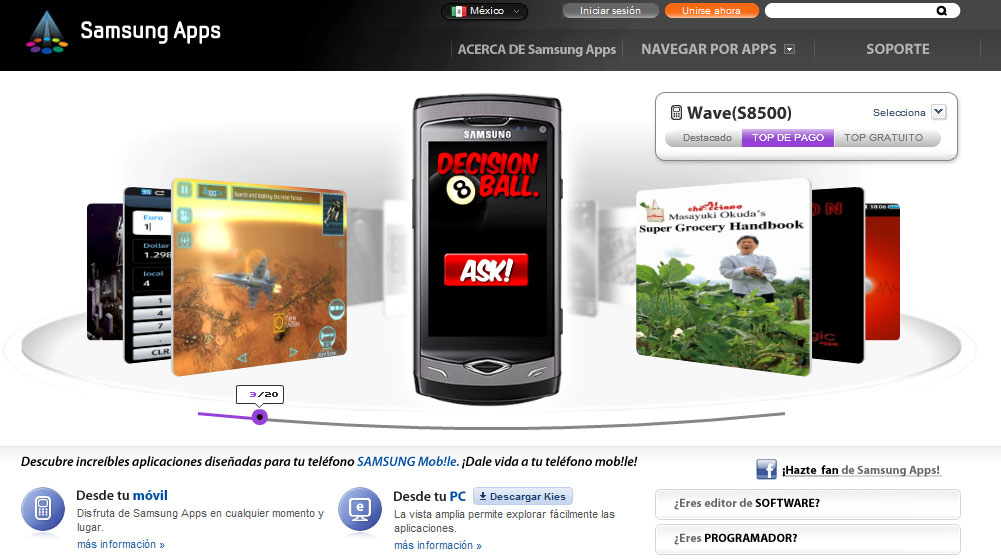
My Zombie Eliminator (first mobile game in 16 languages, available on Palm Pre & Pixi, Android & Samsung bada) was today on place 20. (out of near 1800) in 'top 50 paid apps' in Chinese Samsung Apps Store, 32. in Italian & Mexican, 44. in Australian and 46. in Turkish. I feel gently honored:).

And my other App, Real Decision Ball (also on Palm Pre & Pixi, Android & Samsung bada) is now number 3 in Mexican Market.